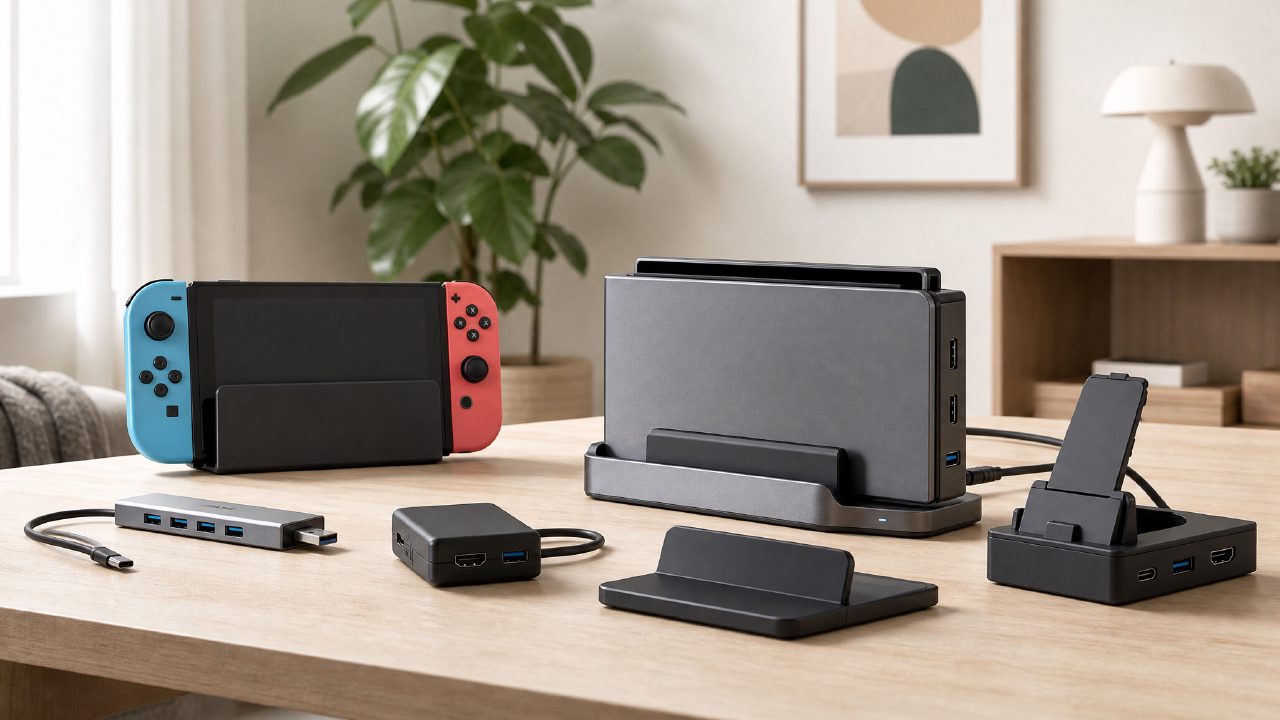
People who seriously start researching Switch docks are usually not because they "want to upgrade their device," but because they've been annoyed by the original dock.
The original black plastic box is bulky, has poor heat dissipation, and easily scratches the screen. After repeated plugging and unplugging, scratches on the shell have almost become standard. What's more annoying is that it only provides one USB port, so if you want to connect a controller charger or a wired network adapter, you have to repeatedly plug and unplug. That's why many people only realize "TV mode can be this refreshing" after switching to a third-party dock.
This overview doesn't just talk about selling points in general; instead, it directly lists the most practical angles worth paying attention to, each corresponding to real usage scenarios. The specific models and judgments mentioned are based on long-term trials of popular models—no cloud recommendations.
1. Small Size ≠ Poor Heat Dissipation, But There Are Pitfalls
A major "design feature" of the original dock is that the console is almost fully enclosed when inserted, trapping all the heat inside. Third-party docks generally adopt an open bracket design, exposing the back of the console directly to the air, improving heat dissipation by more than one level. However, be aware: some extremely compact portable docks pack the circuit board too tightly, and during long periods of 4K output (though the Switch only outputs 1080p) or while charging and playing, the USB-C port area tends to heat up more. This detail is rarely mentioned. After actually handling a few models, you'll find that the temperature feel at the port location is far more important than the size of the box.
2. Port Count Determines Whether You're "Convenient" or "Making Do"
Original dock: 1 HDMI, 2 USB-A (one on the side), 1 power port. If you connect a Pro controller, an 8BitDo receiver, and a wired network card simultaneously, you'll need a hub or repeatedly plug and unplug.
Good third-party docks directly offer:
- At least 3 USB-A ports (4 including the side one is even better)
- A USB-C data port (not just for power, but for connecting a USB drive or card reader)
- An independent Gigabit Ethernet port (don't buy 100Mbps ones; it's 2024, don't save that few bucks)
- HDMI 2.0 (though the Switch doesn't use 4K 60fps, compatibility is better; some older HDMI 1.4 ports may cause flickering on certain monitors)
Simply put: Port variety matters more than quantity. That independent USB-C data port can directly connect a controller charging stand or a capture card to record some recommended Switch games clips, which is much more convenient than repeatedly swapping the dock.
3. Real Trade-offs in Portable Scenarios
If you primarily use it at home, don't fixate on the "pocket-sized" selling point. Those thumb-sized docks (like the Genki Covert Dock) can indeed fit into a carrying case, but the trade-off is that you must bring your own power and HDMI cables, and hotel TV backs may not be easily accessible. Instead, a small "phone-stand-style" dock with a short flat cable tends to be more stable in actual use.
In real travel scenarios, the most practical option is actually a charger with a built-in dock function—for example, some 45W+ GaN chargers that integrate HDMI output. This solution requires no separate dock; you plug in the charger and cast the screen, and you carry one less power cable. But be careful: many such chargers on the market have incomplete handshake protocol support for the Switch, only charging but not outputting video when connected. It's best to check beforehand to confirm support for "Switch TV mode."
Also, if you frequently switch between TV and handheld modes with two-player Switch games for family and friends, it's best to choose a dock that allows easy insertion and removal. Some third-party docks have clips that are too tight, making you afraid of loosening the Type-C port every time you pull out the Switch—far less natural than the original magnetic-style placement.
4. TV Mode Stability – The Most Easily Overlooked Pitfall
Many players think "as long as the dock lights up the screen, it's fine." In reality, if the PD power delivery protocol negotiation between the third-party dock and the Switch is unstable, the following issues may occur:
- Black screen on the TV after plugging in; takes several unplugs and replugs to display.
- Sudden flickering during gameplay; TV shows "no signal" for 2 seconds before recovering.
- Normal charging in handheld mode, but when docked, it prompts "charger not compatible."
The root of these problems lies in the PD chip inside the dock not correctly replicating Nintendo's handshake logic. Currently, the safest approach is to choose products that publicly claim to use "original chip solutions" or are "Nintendo Licensed." Without a certification mark, at least check reviews for a large number of negative comments about "flickering" or "not recognized." On this point, spending a few extra bucks for peace of mind is far more worthwhile than spending hours troubleshooting.
5. Not Everyone Needs to Swap Docks – Determine If You Do
Below are three criteria; if two or more apply, it's worth replacing the dock:
- Your TV cabinet/monitor stand space is very tight, and the original dock takes up space, making cable management messier.
- You often take the Switch out (to friends' houses, hotels, office), and the original lump takes up most of your bag.
- You have multiple peripherals: controller charging stand, wired headphones, steering wheel, dance mat receiver; the original dock's ports are insufficient.
Conversely, if you just leave it plugged in, only connect to a TV, and don't use any peripherals, the original dock is perfectly adequate. Don't buy just because "everyone else is switching"; most people won't notice any difference after swapping.
Finally, a very practical suggestion: if you decide to buy a third-party dock, prioritize models with stable reputations and that support "firmware updates." Nintendo occasionally updates the system, and some older docks may become unusable after an update; models that can be flashed to update firmware at least won't be abandoned. Some budget docks can't even connect to recommended Nintendo games online features after six months—don't ask me how I know; that dock is now gathering dust in a drawer.
If you mainly play recommended indie games—titles that don't demand high graphics—dock performance differences aren't that significant; prioritize ports and portability. However, if you often consult game rankings to pick visually impressive titles (like the Zelda series), it's advisable to check for color deviation or latency after connecting the dock to the TV—some cheap docks lock the HDMI color space incorrectly, causing a washed-out picture.
As for the various peripherals and accessories mentioned in game encyclopedias, the power stability of the dock's ports determines whether they can function properly. For example, when using a capture card to record two-player Switch games footage, insufficient dock power can cause the video to stutter. So a good dock isn't just about "lighting up"—it must also be able to "drive" the peripherals.
Comments
Leave a Comment