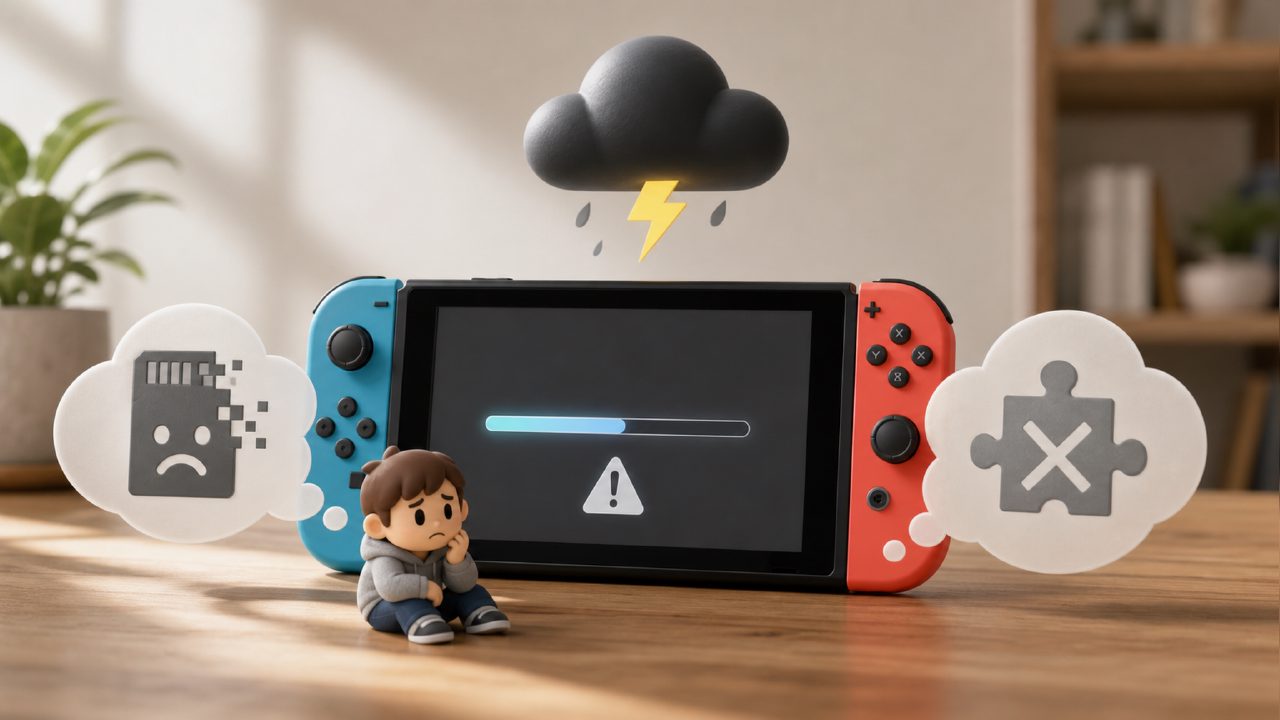
Every time a Switch game pops up with an update prompt, do you really know what you're doing before clicking "OK"?
Many players, myself included, have fallen into traps with this. It's not that the update itself is problematic, but that "blindly updating" can waste your time and even cost you your save data.
Forced Updates? Watch Out for Your DLC and Mods
One of the most easily overlooked pitfalls: Some "game updates" are actually major version overhauls that are incompatible with your existing saves and DLC.
For example, you bought a physical card with version 1.0. You insert it, it prompts an update, and you click it. Then you find that a money-making trick you were using has been patched out, or a DLC you purchased suddenly stops working. In my own experience, with an open-world game commonly found on lists of recommended Nintendo games, after the update a rare piece of equipment I spent dozens of hours to obtain was directly downgraded to an "expired item" and became unusable.
What to do? A safer approach: first disconnect from the internet, enter the game, and see what you still need from the current version. If it's just a single-player story, version 1.0 is often the most stable with the fewest bugs. Chasing the latest update might instead land you in a game-breaking bug.
Slow Network Updates? Don't Just Wait – Close Background Tasks
The Switch's download speed isn't exactly fast. Many people click update and just wait idly, only to find the progress bar halfway after half an hour – or worse, the update fails and throws an error.
There are two common reasons for this:
- The download pauses when the console enters sleep mode. Many think it's still downloading while the screen is off, but it's actually stopped.
- Background downloads for other games are competing for bandwidth. You're updating both Zelda and Pokémon at the same time, and both get stuck.
A practical tip I use: before clicking update, go into data management and make sure the update has exclusive use of the network. If it's really slow, try turning on a network accelerator or switching to a mobile hotspot. Often the issue is the router, not the game.
"Major Version Updates" Might Force You to Start Over
This is especially common among indie game recommendations. Many indie games update frequently, and developers may completely overhaul the core mechanics of the old version.
Here's a real example: a popular two-player Switch game changed its save file format after a major update. Your progress was preserved, but all character skill trees were reset. If you and a friend were in the middle of a tough high-difficulty level, it was enough to make you quit.
How to avoid it? Check major communities (like the game rankings or game encyclopedia sections on Xingba) to see what players are saying about the update. If everyone is complaining that "saves are ruined" or "the feel has changed," hold off on updating. Wait for a patch from the developer.
The "Fake Update" of Some Games: Just a New Splash Screen
This doesn't happen often, but when it does, it's annoying. You spend over ten minutes downloading an update pack, only to enter the game and find nothing changed except a text note saying "Fixed an existing issue." Even worse, some updates introduce crash bugs that weren't in the old version.
So my rule is: If you're not going online to play multiplayer or don't need the new system version support, don't update immediately.
Especially if you're in the middle of a single-player game, first check the discussion about this version on Switch game recommendation sites or communities before deciding whether to click that button.
In the end, updates are meant to improve the experience, not to cause you headaches. Next time you see an update prompt, think first: do I really need it? If not, just leave it for now, and let others test it for you. If something goes wrong, ask around in the Xingba community – many veteran players have been through the same pitfalls and can tell you the quickest fix.
Comments
Leave a Comment